

Unifi Chromecast VLAN setup
Introduction
Section titled “ Introduction”It is nowadays very easy to use the Chromecast within different networks/VLANs. All you have to do is make a few settings within the Unifi Network Application.
In my case I have configured the following networks:
IOT-VLAN(with a Nvidia Shield and a Chromecast Ultra)CLIENT-VLAN(with devices casting to the Nvidia Shield and the Chromecast)
Enable multicast DNS
Section titled “Enable multicast DNS”As a first step I have enabled Multicast DNS for the above mentioned networks.
- Go to
SettingsandNetworks - Within the
Global Network SettingsenableMulticast DNSand add the networks with devices which need to cast. For example:- IOT-VLAN
- CLIENT-VLAN
- And finally click
Apply Changes

WiFi multicast management setup
Section titled “WiFi multicast management setup”I have created a WiFi network for both my IOT-VLAN and the CLIENT-VLAN network and set up multicast for each wifi network.
- Go to
SettingsandWiFi - From the list at the top, open the WiFi network settings by clicking on the network
Advanced Configuration:
First selectManual.- Required Client Device Isolation: Disabled
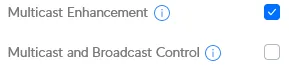
- Required Multicast Enhancement: Enabled
- Required Multicast and Broadcast Control: For the IOT-VLAN I added the MAC address of my wireless Chromecast to the list
- And finally click
Apply Changes
Troubleshooting
Section titled “Troubleshooting”If casting doesn’t work you can temporarily add a client device to the IOT-VLAN. Then try again to see if the casting works, and if it does, then it could possibly be a problem with the firewall.
No comments found for this note.
Join the discussion for this note on Github. Comments appear on this page instantly.